

Trial of Cyber Science 3D® by The Utah Educational
Network
Contents
1. Welcome to Cyber Science 3D®
3. How to Access Cyber Science 3D®
4. Installation Steps: First time only
1.
Welcome to Cyber
Science 3D®
These few pages are provided specifically for a trial period of the Cyber Science 3D® software through the Utah Education Network.
2.
What is Cyber
Science 3D®?
Cyber Science 3D™ is educational interactive software
for learning and exploring interactive 3D science content, covering human anatomy,
botany, zoology, microbiology, chemistry, engineering, paleontology, and earth
science. The software uses simulation
technology and high quality 3D models to provide the user with an immersive and
unforgettable experience.
3.
How to Access
Cyber Science 3D®
To access the program, please click on the following link. If for the first time, you will be asked to download and install a viewer (a small program necessary to experience the software). Please see the next section if you encounter any problems with the installation.
Web: http://cf.cyber-anatomy.com/csXPlayer.htm
Login: uen@cyberscience3d.com
Password: csUtah5489
Expiration: May 31st, 2013
4.
Installation
Steps: First time only
Because Cyber Science 3D uses a simulation program (just like a game), a viewer must be downloaded and installed on your computer.
4.1
Windows
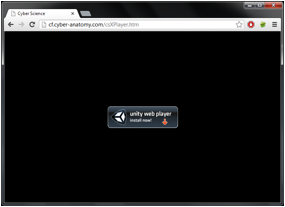
1. Click on the link to launch Cyber Science 3D® for the first time, you will
be presented with the following screen.
2. Click on the logo and download the installer. This will download an installer (called Unity 3D) to your computer.
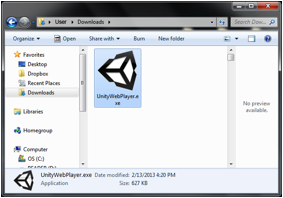
3. Navigate to your Downloads folder and run the installer ‘UnityWebPlayer.exe’. This process will install the web player locally to your computer and allow the 3D content to be loaded in your web browser.
Note: you will need to have administrator privileges for this step.
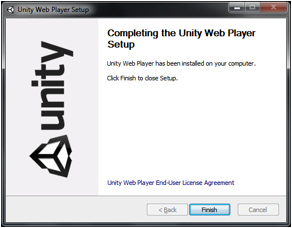
4.
Once completed, you will see a screen showing that the installation procedure
is complete.
5.
Go back to the original link (to launch Cyber Science 3D®) and click it
again. The simulation will
automatically start up and run.
4.2
OS X
1. The first time you come to a website that requires a player, you will be prompted to install one. Click on the logo and download the package.
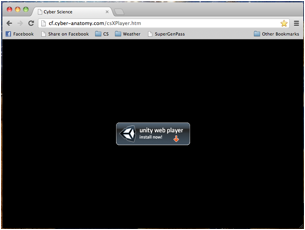
2. This will download an installer package to your computer.
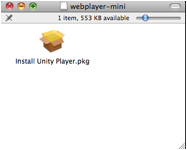
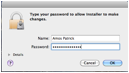
3. Run the DMG installer. Note you will need to have administrator privileges.
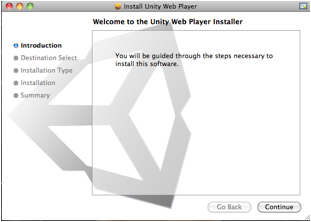
4. Follow the Unity Web Player Installer
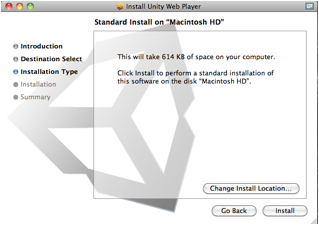
Click Install
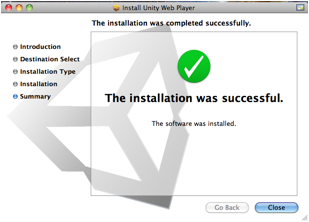
5. Once finished, it the web page will automatically start the simulations.
5.System
Requirements
5.1
Windows
Supported
browsers
Internet Explorer, Firefox, Chrome, Safari, Opera
Requirements
Windows XP/Vista/7
5.2
OS X
Supported
browsers
Safari, Firefox, Chrome
Requirements
Mac OS X 10.5 or newer